How to Edit a PDF Without Uploading It
Learn how browser-based PDF editors work locally on your device without uploading sensitive files. Understand the privacy and security benefits of client-side editing.

Yes, You Can Edit a PDF Without Uploading It—Here’s How
It’s a common and valid concern for anyone handling sensitive documents: is it safe to use an online PDF editor? The answer depends entirely on how the tool is built. The good news is that, yes, you absolutely can edit a PDF without uploading it to a server, provided you use a client-side tool. At PDFTSSR, we built our entire suite of online PDF utilities around this privacy-first principle. Unlike traditional cloud-based software that requires you to send your file to a remote server for processing, modern browser technologies allow for powerful document manipulation to happen directly on your own computer. This means your contracts, invoices, financial statements, and personal ID files never leave your device.
Understanding the Difference: Client-Side vs. Server-Side Processing
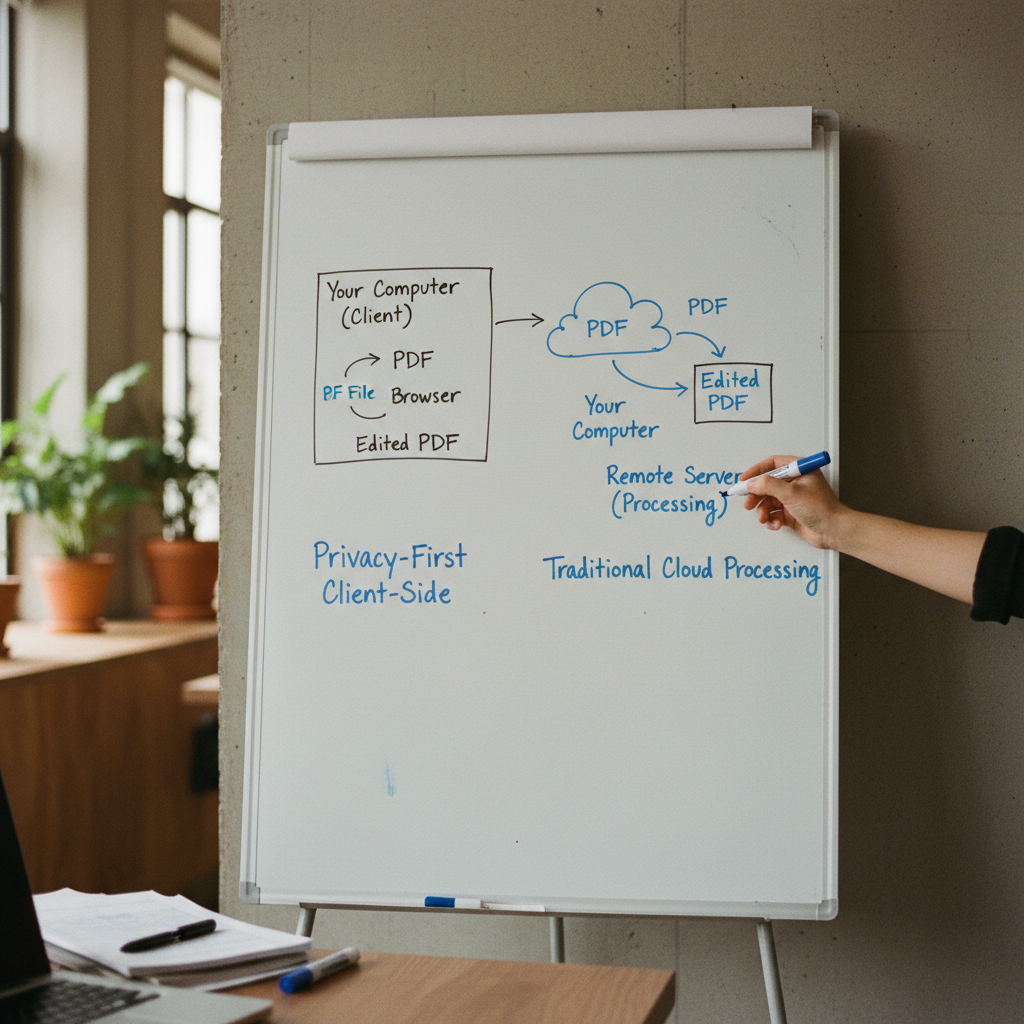
When you use an 'online' tool, one of two things is happening. Understanding this distinction is the key to protecting your document's privacy.
Server-Side Processing (The Old Way)
-
You click 'Upload' and select your PDF.
-
The file travels over the internet to the company's server.
-
The server's software performs the edits (e.g., merging, compressing, or converting).
-
The server sends the modified file back to you for download.
-
The provider should then delete your file from their server. But you have to trust that they do, and that their systems are secure from breaches during that processing window. For sensitive documents, this is a significant leap of faith.
Client-Side Processing (The Privacy-First Way)
-
You open a PDF file with a tool like PDFTSSR.
-
The web application uses your browser's own capabilities (leveraging technologies like WebAssembly and JavaScript) to load the file directly into your computer's local memory.
-
All edits—adding text, merging pages, signing your name, redacting information—happen inside your browser.
-
When you save or download the finished PDF, it is saved directly from your machine back to your machine. The file never travels across the internet to an unknown server.
This client-side model is the only way to guarantee that your confidential information remains completely under your control. You can even disconnect from the internet after loading the tool, and it will continue to work.
What Kinds of Edits Are Possible Without Uploading?
You might assume that browser-based editing is limited to simple tasks, but modern client-side tools can handle a surprisingly wide range of sophisticated PDF modifications. Because the processing happens locally, performance is often fast and responsive. Here are the core tasks that are securely handled in a no-upload environment:
-
Content and Page Organization:
-
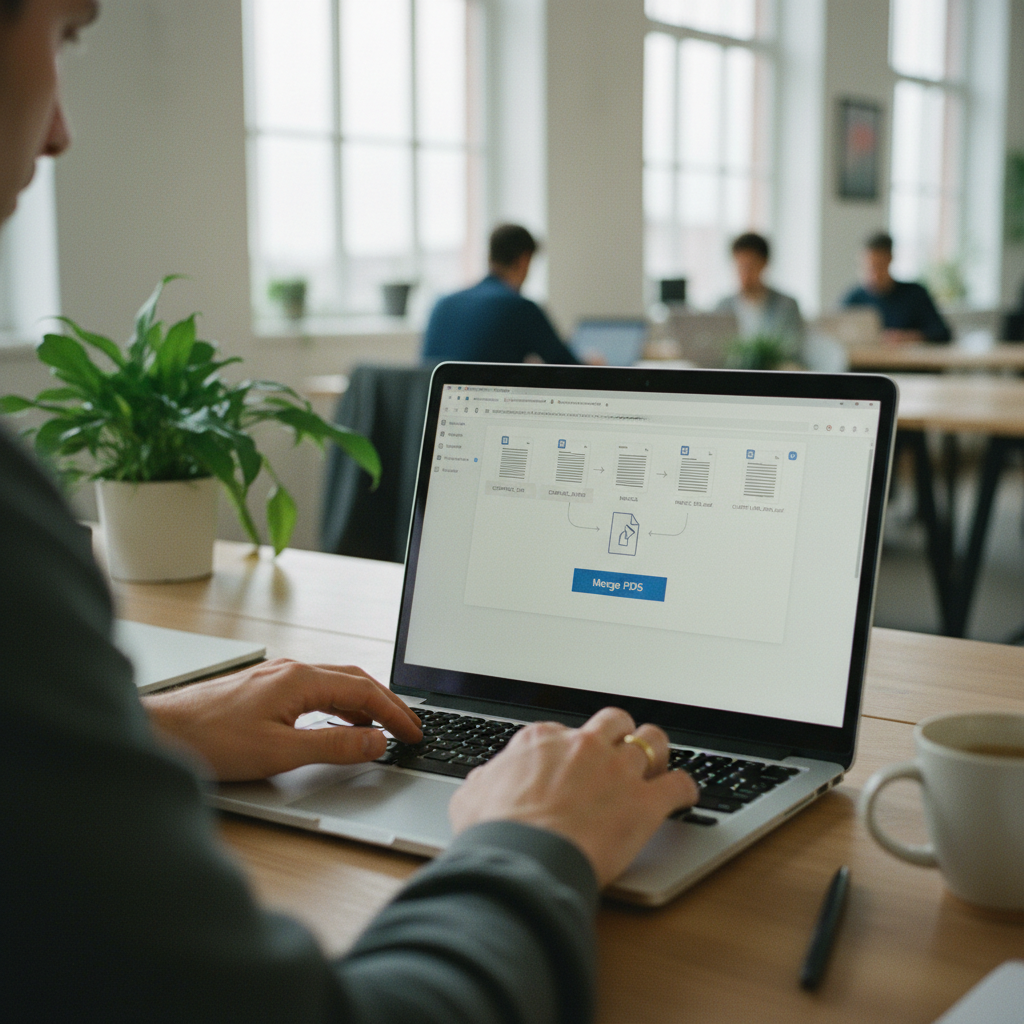
Merging & Splitting: Combine multiple PDFs into one or split a large file into smaller, targeted documents.
-
Page Manipulation: Rotate, reorder, and delete pages to structure your document perfectly.
-
Compression: Reduce file size for easier emailing or storage, all without the file leaving your device.
-
Annotations and Form Filling:
-
Adding Text & Images: Place new text boxes, shapes, and images onto the PDF. This is technically an overlay, not a reflow of existing text, which preserves the original document's integrity.
-
Filling Forms: Complete interactive or non-interactive PDF forms quickly.
-
Highlighting & Drawing: Mark up documents with highlights, underlines, and freehand drawing tools for review.
-
Security and Signing:
-
E-Signatures: Add a legally binding electronic signature to a contract or agreement.
-
Redaction: Permanently black out sensitive information (like Social Security numbers or financial details) before sharing.
-
Data Extraction:
-
Text Extraction & OCR: Many client-side tools can perform Optical Character Recognition (OCR) to turn scanned, non-selectable text into editable text. The quality depends on the scan's resolution, but even this complex task can be done locally.
How to Verify if a PDF Tool is Truly Client-Side
Many websites claim privacy, but not all deliver. The common advice to 'read the privacy policy' is sound, but often impractical for a quick task. Here’s a more reliable checklist to determine if a tool processes your files locally:
| Verification Method | What to Look For | Red Flag |
|---|---|---|
| Read the On-Page Claims | Look for explicit phrases like "files never leave your computer," "processed in your browser," "100% client-side," or "no upload required." | Vague terms like "secure," "encrypted transfer," or "we delete files after 1 hour" all imply server-side processing. |
| The 'Airplane Mode' Test | 1. Open the website and the specific PDF tool. |
-
Turn on your computer's airplane mode (disconnecting Wi-Fi).
-
Try to open and edit a local PDF. | If the tool stops working, throws an error, or cannot open a file, it relies on a server connection to function. | | Check Browser Network Activity | (For technical users) Open your browser's Developer Tools (F12 or Ctrl+Shift+I), go to the "Network" tab, and watch for large file transfers when you open a PDF. | If you see your PDF's file name being sent in a POST or PUT request to the website's domain, it's being uploaded. | | Look for an Installable App | Some services offer both an online tool and a desktop app. The desktop app is inherently client-side, but this doesn't guarantee their online version is. | Don't assume the online editor works the same way as the downloadable software. Verify it separately. |
Tools like PDFTSSR are designed to pass these tests. Our commitment is to provide powerful functionality without ever requiring you to give up control of your data. The entire process is transparent and takes place on your machine.
The Critical Advantage for Sensitive Documents
For professionals in legal, finance, healthcare, and HR, or for individuals handling personal data, the implications of the client-side model are profound. The risk of data exposure isn't just a hypothetical concern; it's a matter of professional responsibility and legal compliance.
Consider these common scenarios:
-
Contracts & Legal Agreements: A lawyer needs to redact a client's personal information from a discovery document before sharing it. Uploading the unredacted original to a third-party server creates an unnecessary link in the chain of custody.
-
Financial Records: An accountant is preparing tax documents containing a client's full financial history. Using a client-side tool to merge receipts and forms ensures that sensitive data like bank account numbers and income statements remain confidential.
-
Personal Identification: You need to send a copy of your driver's license or passport but must black out certain information first. A no-upload editor prevents your ID from being stored, even temporarily, on an unknown server.
In the United States, regulations around data privacy and client confidentiality make the choice of tools a critical one. Using a verifiable client-side PDF editor isn't just about peace of mind—it's a best practice for risk management.
Ready to Edit Securely? Get Started with PDFTSSR
Navigating the world of online tools doesn't have to mean compromising on privacy. By choosing a client-side solution, you can get the convenience of a browser-based PDF editor with the security of a desktop application.
PDFTSSR offers over 40 free, privacy-first PDF utilities that run directly in your browser. Whether you need to quickly compress a large report, sign a new-hire contract, or extract text from a scanned invoice, our tools are built to work locally on your device. Your data stays with you, always.
Experience the difference for yourself. Start using PDFTSSR's free tools today and take back control of your documents.
About PDFTSSR
PDFTSSR provides a privacy-first, browser-based suite of over 40 free PDF utilities. Serving a global user base, our platform is designed for professionals and individuals handling sensitive documents like contracts, invoices, tax forms, and legal files. Our core strength is offering a secure, client-side online workspace where all document processing happens locally on the user's device, ensuring data never needs to be uploaded to a server.
Frequently asked questions
Is it safer to edit a PDF on a desktop app than online?
Traditionally, yes. A desktop application is inherently 'client-side' as it runs entirely on your machine. However, modern client-side online tools like PDFTSSR offer the same level of privacy. They use your browser as the application environment, so your files are never uploaded to a server. The key is to verify your 'online' tool is truly client-side and not just a front-end for server-based processing.
What does 'client-side processing' mean for PDF editing?
Client-side processing means all the work of editing your PDF is performed by your own computer (the 'client') within your web browser. The tool uses your device's CPU and memory to load, modify, and save the file. The opposite is server-side processing, which requires uploading your file to the company's computer (the 'server') to do the work. For privacy, client-side is far superior.
Can I edit the actual text of a PDF without uploading it?
This depends on the PDF and the tool. Most client-side editors 'edit' by adding new content (like text boxes, images, or redactions) as a layer on top of the original PDF. For scanned documents, a client-side OCR tool can extract the text, which you can then copy and edit elsewhere. True, deep editing of a PDF's existing text (like changing a word in a sentence and having the paragraph reflow) is a highly complex task that even advanced desktop software struggles with, but adding new text is fully supported by tools like PDFTSSR without an upload.
Are 'no upload' PDF editors truly free?
Many are, but it's a common concern. Some tools may have limitations on file size, number of uses, or place a watermark on the output. Others, like PDFTSSR, offer a robust set of core tools completely free and without such restrictions because the client-side model reduces our server costs. Always check for a pricing page or FAQ to understand any limits before you start.
Will a client-side editor work on my phone or tablet?
Generally, yes. Because client-side tools run in a web browser, they are designed to be compatible with most modern browsers, whether on a desktop, tablet, or smartphone. However, performance with very large or complex PDFs might be better on a device with more memory and processing power, like a laptop or desktop computer.
About PDFTSSR
PDFTSSR offers a browser-based suite of PDF tools — a privacy-first, client-side online workspace providing 40+ free PDF utilities such as compressing, merging, splitting, converting, OCR, editing, signing, comparing, and text extraction. It is aimed at people handling sensitive documents (contracts, invoices, IDs, tax forms, client files, and legal PDFs). The company's online presence could not be reliably tied to a specific physical location in the available results.
Expert services sold to organisations — legal, accounting, agency, consultancy, engineering.
request a quote or get in touch with PDFTSSRNext step
Continue with PDFTSSR
PDFTSSR offers a browser-based suite of PDF tools — a privacy-first, client-side online workspace providing 40+ free PDF utilities such as compressing, merging, splitting, converting, OCR, editing, signing, comparing, and text extraction. It is aimed at people handling sensitive documents (contracts, invoices, IDs, tax forms, client files, and legal PDFs). The company's online presence could not be reliably tied to a specific physical location in the available results.
Visit PDFTSSR